SPF lookup count and 10-lookup limit
CheckInbox calculates recursive SPF DNS lookups and flags configurations that exceed the 10-lookup limit, including a breakdown of include and redirect usage.

Review SPF, DKIM, DMARC, MX and domain-level email configuration before launch. CheckInbox also detects SPF lookup-limit risks, duplicate records, DKIM selectors and problematic domain-role conflicts.
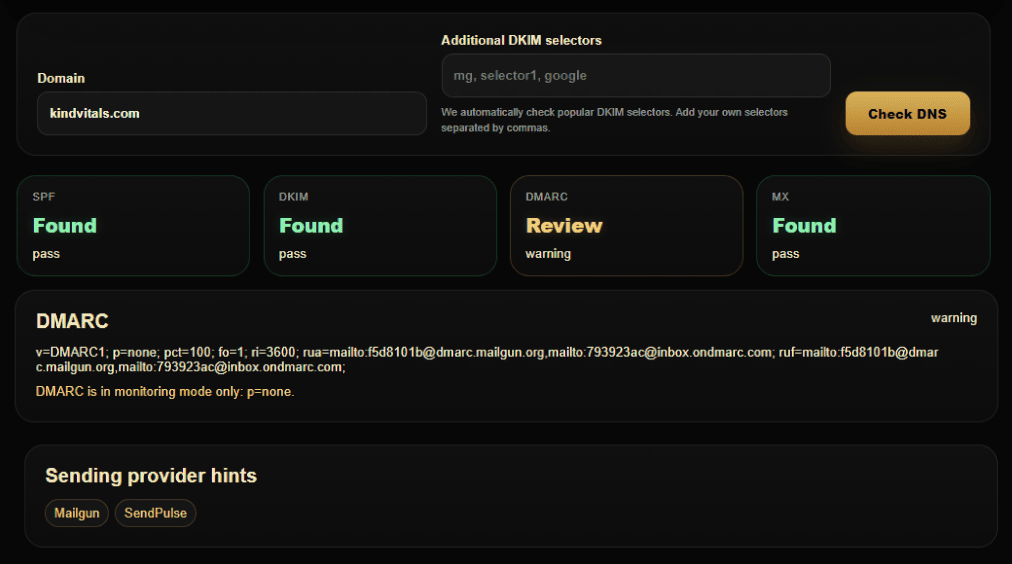
DNS Checker goes beyond simple record presence and highlights structural configuration risks that can affect email authentication and deliverability.
CheckInbox calculates recursive SPF DNS lookups and flags configurations that exceed the 10-lookup limit, including a breakdown of include and redirect usage.
Multiple SPF records on the same hostname are invalid. CheckInbox detects duplicate SPF records instead of simply showing them as separate TXT values.
Review missing or duplicate DMARC records, policy state, p=none monitoring mode, missing rua reporting and other configuration issues.
Check common provider selectors automatically, add custom selectors when needed, and show only DKIM records that are actually found.
If a default resolver returns incomplete SPF, TXT or MX visibility, CheckInbox can use authoritative DNS fallback to build a more reliable result.
Detect risky CNAME and email-DNS combinations when one hostname is being reused across sending, tracking, landing-page, redirect or verification roles.
Check the actual domain or subdomain used by your email infrastructure, not just the company root domain.
Use the domain or subdomain that actually participates in email sending, authentication, return-path or related mail infrastructure.
CheckInbox tests common provider selectors automatically. If your ESP uses a custom selector, add it before running the check.
CheckInbox reviews SPF, DKIM, DMARC, MX and relevant domain-context signals in one report.
Prioritize SPF lookup overflow, duplicate records, missing or weak DMARC configuration, missing DKIM and other structural warnings.
After changing DNS records, allow time for propagation and rerun the check to confirm that the intended configuration is visible.
DNS Checker validates the visible DNS configuration of a domain, but correct SPF, DKIM, DMARC, and MX records do not guarantee inbox placement. Actual delivery also depends on the specific message, sender reputation, sending infrastructure, campaign volume, recipient engagement, and mailbox-provider filtering. Use DNS Checker to verify domain readiness, Scan to inspect a real email, and Check to measure actual placement.